Tips and Tricks
Working With In-Drafting Styles
Basics of the Prompt Home Page
How To Search For Documents In Prompt
How to turn on previous searches in Google Chrome (Autofill)
How to access the Support Portal
How to Export Search Results
How to generate offline server document list
Why can't I add a permission to a user?
How to manually trigger or troubleshoot the Offline Sync process
How to Discontinue Copying from Another Organisation
How comments behave during document review and approval
How to remove approval permission from an Admin and retain other permissions
How to change a Document Owner
How to Add a Searchable Location in Prompt
Failed AzureAD Process – Expired Azure Secret
Smart Art text not formatting correctly after Prompt converts it to PDF
How to locate and reactivate a disabled user
Why do Reviewers get revoked?
Why a document version history can be missing in the drafting tool
What is the Document Information Email and how to use it?
Resolving Duplicate Email Issue for Disabled Users
How to permanently skip Review
Organisation Setup
How to configure a Submission Process
How to configure a Requisition Process
How To Configure Your Organisation
The Details Tab
The Submission Process Tab
The Requisition Process Tab
How to add/edit a Department
Understanding Department and Section Statuses in Prompt
How To Edit Your Organisation
How to configure Document Author Submissions
How to set up an Organisation Message
The Drafting Process Tab
Configurating Documents Tags
Offline Access Application
Email Domains Tab
Configuring Standards
How to add/edit a Section
How to configure an Approval Process
How to update your Organisation logo
How to rename a department or section in Prompt
Configuring Documents Reviews
How to assign Standards, Legislation, Executive Sponsors and Risk Rating
How to Configure Azure AD SSO
Email Autocomplete
How to set up Risk Rating
How to configure the Drafting and Reviews Process
In-Drafting
In-Drafting Guide
What is In-Drafting?
In-Drafting Overview
Requisition Stage
Drafting Stage
Review Stage
Submission Stage
Approval Process
Document Author Forms
Receiving The Requisition Form
How to enable Prompt Drafting Plugins
Managing Co-Authors
"Download Failed" error in the drafting tool
Where to access Prompt Drafting Plugins
User Management
How to set up a new general user
How to set User Access Rights
How to set up user permissions
Prompt Roles and Permissions
How to set up Executive Sponsors
How to change my profile picture
How to Setup Automatic User Provisioning in AzureAD
How to set up an anonymous user
How to assign cross organisational search access to a General User
How to Generate a Mobile Token
How to invite reviewers
How to disable a user
How to promote a user to an Admin
Add New User: Email address is already in use
How to reset a user's MFA setup
How to log in with Email Token MFA option
How to remove user permissions
How to set an expiry date for staff user logins
How users access Prompt offsite by generating their own mobile token
How to set up Multi-Factor Authentication (MFA) as Email Token
How to suspend a user
How to unlock a user
How to set up a user as an approver
How to View User History
Login Failures
How to set up a new admin user
How to change my password
How to set up Multi-Factor Authentication (MFA) on Authenticator Application
New Client Migration
Migration Target Schema
Migration Data Transformation Example
How to upload data and documents to staging location
Troubleshooting data validation issues
Frequently Asked Questions
Why is MFA not working on my phone app?
Why is the PDF document title displayed incorrectly and how can you change it?
Business Continuity Plan/DR - Prompt suggestion
What Footer Tags are available in Prompt?
What happens to documents when In-Drafting is turned off?
How do I search for other organisations documents?
Prompt Terms and Definitions
How to make documents go to the Submissions tab instead of the Approvals Tab
Password Reset / Expiry
Why can't I see the Next Review Date from the exported result in Search?
Understanding Document Approval Reminders and Notifications
Incorrect / Missing Font in converted PDF file
Who is Lucas Victoria?
Offline Sync Tool - What documents will be synced?
How to change a document title?
Checking-in a Document - Where does my document go when I check it in?
How to assign my Prompt Admin role to another user?
Username - Why doesn't my old Prompt user name work?
Email - Auto-generated email notification signature - I don't want my name on them
Notifications
How many administrators can be added to an account?
Which document types are supported in PROMPT?
The Recommended Browser
Do users need to log into PROMPT with a username and password?
Single Sign On Frequently Asked Questions
How to change a document Review Date?
How to enable Track Changes in the drafting tool
What's the difference between inviting co-authors with Prompt credentials and those without? How do they log in?
Chrome settings - How to change to enhance Prompt usability?
Is there a cost for PROMPT?
Request a document version
Approving a Document - Why can't I see the document I need to approve in the Home Tab?
What is Multi-Factor Authentication (MFA)?
Why do disabled documents appear in the Document Register report even when Deleted filter is not chosen?
Why do I get a Change Your Password page when I sign in?
User Permissions - How do I add or change user permissions?
How is Prompt's development work handled?
Prompt Documents Support Hours
Why can't I edit the Agency Admin account?
Notification that you will be logged out
Document Review Date - Why can't I change the Review Date when checking in a document?
Bulk Move Documents - How do I bulk move documents?
Why am I getting an expired error when I link a Prompt document?
Interpreting the Audit Report
Audit - Full audit does not show full history of document
Why did I not receive my password reset token?
Working Offsite - Why does anonymous user link go to log-in page
Document ID - Why have my document IDs changed in the new Prompt?
What to do when a user is in "Pending" status?
Is PROMPT endorsed by the Department of Health?
Offline Sync - Performing a Full Re-sync
Log-in Screen - Why do I get the log-in screen when I click on the anonymous user link?
Document Management
How to create fillable PDF forms
How to Reactivate a Disabled/Deleted Document
How to Keep a Document Private
How to Copy a Document Link
Assigning Standards or Legislations
How to change a Document's Location, Document Type or Sponsor
How to Copy a Document
Document Priority Notifications
How to search for a document
How to set an Implementation Date
How document versions work
How to Check-In a document
How to Approve or Reject a Document
How to Check-Out a document
Document Search Settings for Anonymous Users
How to add/edit Document Types
How to access the Document History
How to access the Document Information
How to submit my draft document
Document Processing Failures
How to embed Footer Tags into a document
How to invite Document Co-Authors
How to Request a Document
How to customise my forms
How to insert Hyperlinks into Prompt documents
How to download All Documents
Remove and Reinstate Document Review Requirement
How to set a Document Review window for responses
How to Disable/Archive a Document
How to Link Documents and Create Alerts
How to use Full Audit of a document
How to Create a New Document
How to re-upload a Failed Document
Prompt Implementation
Reports
Table of Contents
- All Categories
- Frequently Asked Questions
- Interpreting the Audit Report
Interpreting the Audit Report
 Updated
by Niamh Ferns
Updated
by Niamh Ferns
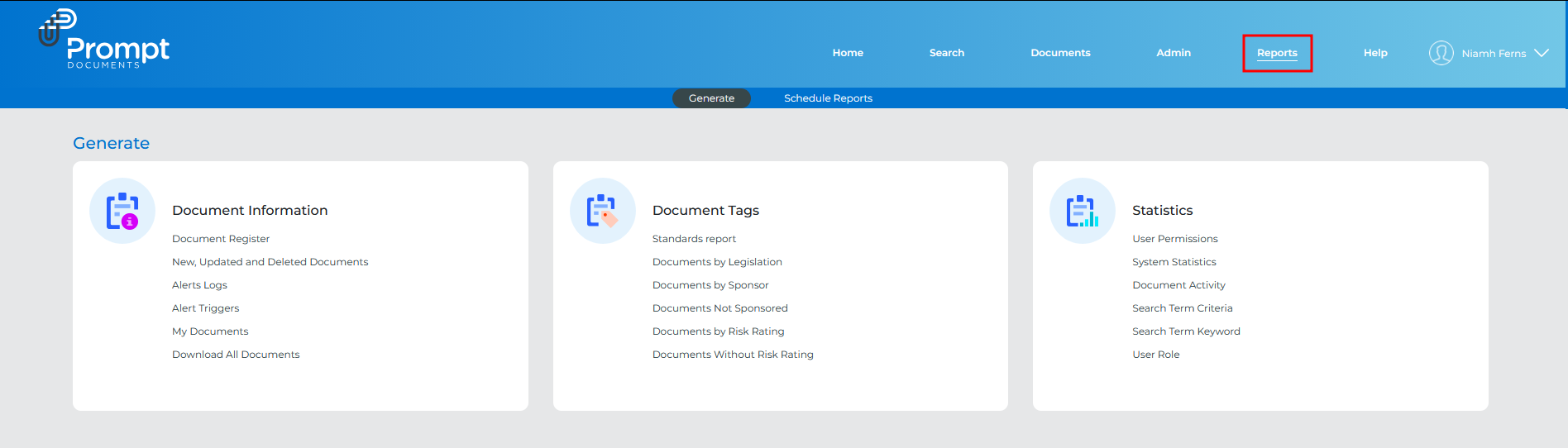
There are several audit reports that you can generate in Prompt. The majority of these can be found under the Reports tab on the top right side of the Prompt UI:
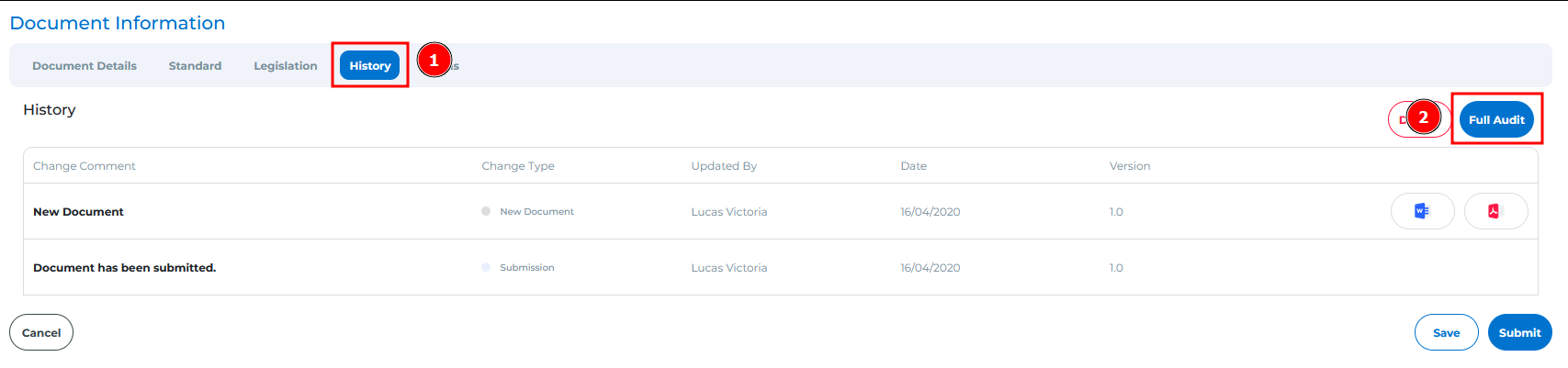
In addition to this, you can generate a full audit report from a document's history tab:
Audit Report Reference
Field | Purpose |
Display Code | The value entered into the user's Display Code under |
Display Name | The value entered into the user's Display Name under |
IP Address | The IP address used during the activity. This can help identify whether the activity originated from outside your organisation's network. |
Log Date Time | The date and time the activity occurred. |
Event Type | The activity performed within Prompt. Examples include:
|
Status | The workflow status associated with the event where applicable. |
Organisation | The organisation of the user performing the activity. |
Document Number | The unique identifier assigned when the document was created. |
Document Version | The version involved in the event. Administrative users may work on unpublished versions while general users continue downloading the currently published version. |
Document Title | The unique title assigned to the document. |
Department | Department assigned to the document. |
Section | Section assigned to the document. |
Document Type | Document classification assigned within Prompt. |
Change Comment | Any comment entered by the user during workflow activities such as approvals or check-ins. If blank, the associated event does not support comments. |
Understanding Event Types
The audit report records many different events.
Event | Purpose |
InformationAccessed | Viewing the document metadata via the information tab. |
Downloaded | The published document has been downloaded. |
Activated | The document has been published. |
CheckedOut | The document has been checked out for editing. |
CheckedIn | The document has been checked in, and edits have been submitted. |
Approved | A document has received its final approval prior to publishing. |
ApprovalProgressed | A document has passed one of its approval stages in a multi-stage approval process. |
UserConnected | A user has joined a draft or review session for a document. |
UserDisconnected | A user has left a draft or review session for a document. |
DocumentSaved | Work on a document has been saved during a draft or review session. |
SubmissionSubmitted | The document has completed the submissions stage. |
ReviewSubmitted | The document has completed the review stage. |
NameChanged | A document has been renamed. |
Reassigned | A document's position in the Prompt heirarchy has been updated. |
Log Conventions
These events collectively provide a detailed audit trail of document lifecycle activity. When reading rows within audit reports where Display Code and Display Name are blank, the report is not indicating an unknown user. Instead, the values from the previous populated row continue to apply. This is simply a report formatting convention used to reduce repeated values.
Identifying External Organisations within an audit reports external activity can generally be identified through:
- An unrecognised
Display Name - An unrecognised
Display Code - An
IP Addressthat is outside your organisation's whitelist