Tips and Tricks
Working With In-Drafting Styles
Basics of the Prompt Home Page
How To Search For Documents In Prompt
How to turn on previous searches in Google Chrome (Autofill)
How to access the Support Portal
How to Export Search Results
How to generate offline server document list
Why can't I add a permission to a user?
How to manually trigger or troubleshoot the Offline Sync process
How to Discontinue Copying from Another Organisation
How comments behave during document review and approval
How to remove approval permission from an Admin and retain other permissions
How to change a Document Owner
Why a document may not appear in Offline Sync
How to Add a Searchable Location in Prompt
Failed AzureAD Process – Expired Azure Secret
Smart Art text not formatting correctly after Prompt converts it to PDF
How to locate and reactivate a disabled user
What documents appear in the Offline Sync?
Why do Reviewers get revoked?
Why a document version history can be missing in the drafting tool
What is the Document Information Email and how to use it?
Resolving Duplicate Email Issue for Disabled Users
How to permanently skip Review
Organisation Setup
How to configure a Submission Process
How to configure a Requisition Process
How To Configure Your Organisation
The Details Tab
The Submission Process Tab
The Requisition Process Tab
How to add/edit a Department
Understanding Department and Section Statuses in Prompt
How To Edit Your Organisation
How to configure Document Author Submissions
How to set up an Organisation Message
The Drafting Process Tab
Configurating Documents Tags
Offline Access Application
Email Domains Tab
Configuring Standards
How to add/edit a Section
How to configure an Approval Process
How to update your Organisation logo
How to rename a department or section in Prompt
Configuring Documents Reviews
How to assign Standards, Legislation, Executive Sponsors and Risk Rating
How to Configure Azure AD SSO
Email Autocomplete
How to set up Risk Rating
How to configure the Drafting and Reviews Process
In-Drafting
In-Drafting Guide
What is In-Drafting?
In-Drafting Overview
Requisition Stage
Drafting Stage
Review Stage
Submission Stage
Approval Process
Document Author Forms
Receiving The Requisition Form
How to enable Prompt Drafting Plugins
Managing Co-Authors
"Download Failed" error in the drafting tool
Where to access Prompt Drafting Plugins
User Management
How to set up a new general user
How to set User Access Rights
How to set up user permissions
Prompt Roles and Permissions
How to set up Executive Sponsors
How to change my profile picture
How to Setup Automatic User Provisioning in AzureAD
How to set up an anonymous user
How to assign cross organisational search access to a General User
How to Generate a Mobile Token
How to invite reviewers
How to disable a user
How to promote a user to an Admin
Add New User: Email address is already in use
How to reset a user's MFA setup
How to log in with Email Token MFA option
How to remove user permissions
How to set an expiry date for staff user logins
How users access Prompt offsite by generating their own mobile token
How to set up Multi-Factor Authentication (MFA) as Email Token
How to suspend a user
How to unlock a user
How to set up a user as an approver
How to View User History
Login Failures
How to set up a new admin user
How to change my password
How to set up Multi-Factor Authentication (MFA) on Authenticator Application
New Client Migration
Migration Target Schema
Migration Data Transformation Example
How to upload data and documents to staging location
Troubleshooting data validation issues
Frequently Asked Questions
Why is MFA not working on my phone app?
Why is the PDF document title displayed incorrectly and how can you change it?
Business Continuity Plan/DR - Prompt suggestion
What Footer Tags are available in Prompt?
What happens to documents when In-Drafting is turned off?
How do I search for other organisations documents?
Prompt Terms and Definitions
How to make documents go to the Submissions tab instead of the Approvals Tab
Password Reset / Expiry
Why can't I see the Next Review Date from the exported result in Search?
Understanding Document Approval Reminders and Notifications
Incorrect / Missing Font in converted PDF file
Who is Lucas Victoria?
How to change a document title?
Checking-in a Document - Where does my document go when I check it in?
How to assign my Prompt Admin role to another user?
Username - Why doesn't my old Prompt user name work?
Email - Auto-generated email notification signature - I don't want my name on them
Notifications
How many administrators can be added to an account?
Which document types are supported in PROMPT?
The Recommended Browser
Do users need to log into PROMPT with a username and password?
Single Sign On Frequently Asked Questions
How to change a document Review Date?
How to enable Track Changes in the drafting tool
What's the difference between inviting co-authors with Prompt credentials and those without? How do they log in?
Chrome settings - How to change to enhance Prompt usability?
Is there a cost for PROMPT?
Request a document version
Approving a Document - Why can't I see the document I need to approve in the Home Tab?
What is Multi-Factor Authentication (MFA)?
Why do disabled documents appear in the Document Register report even when Deleted filter is not chosen?
Why do I get a Change Your Password page when I sign in?
User Permissions - How do I add or change user permissions?
How is Prompt's development work handled?
Prompt Documents Support Hours
Why can't I edit the Agency Admin account?
Notification that you will be logged out
Document Review Date - Why can't I change the Review Date when checking in a document?
Bulk Move Documents - How do I bulk move documents?
Why am I getting an expired error when I link a Prompt document?
Interpreting the Audit Report
Audit - Full audit does not show full history of document
Why did I not receive my password reset token?
Working Offsite - Why does anonymous user link go to log-in page
Document ID - Why have my document IDs changed in the new Prompt?
What to do when a user is in "Pending" status?
Is PROMPT endorsed by the Department of Health?
Log-in Screen - Why do I get the log-in screen when I click on the anonymous user link?
Document Management
How to create fillable PDF forms
How to Reactivate a Disabled/Deleted Document
How to Keep a Document Private
How to Copy a Document Link
Assigning Standards or Legislations
How to change a Document's Location, Document Type or Sponsor
How to Copy a Document
Document Priority Notifications
How to search for a document
How to set an Implementation Date
How document versions work
How to Check-In a document
How to Approve or Reject a Document
How to Check-Out a document
Document Search Settings for Anonymous Users
How to add/edit Document Types
How to access the Document History
How to access the Document Information
How to submit my draft document
Document Processing Failures
How to embed Footer Tags into a document
How to invite Document Co-Authors
How to Request a Document
How to customise my forms
How to insert Hyperlinks into Prompt documents
How to download All Documents
Remove and Reinstate Document Review Requirement
How to set a Document Review window for responses
How to Disable/Archive a Document
How to Link Documents and Create Alerts
How to use Full Audit of a document
How to Create a New Document
How to re-upload a Failed Document
Prompt Implementation
Reports
- All Categories
- Tips and Tricks
- How to generate offline server document list
How to generate offline server document list
 Updated
by Leo Comia
Updated
by Leo Comia
Overview
If some documents appear to be missing from the offline library, there's a need to create a list of all the files currently stored locally. Comparing this list to the organisation’s master document register helps confirm whether the missing files are expected or require further investigation.
Steps to generate and send the list:
- Open PowerShell on the computer running the Offline Sync Tool.
- Navigate to the documents folder:
C:\ProgramData\Prompt\PROMPT.Offline\Documents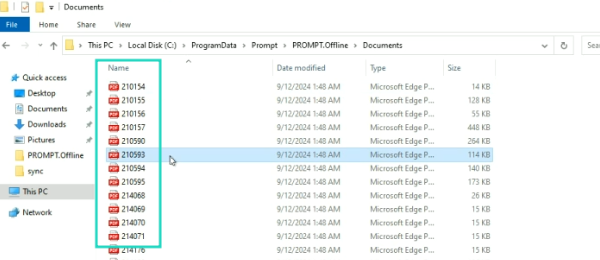
- Run the following command:
Get-ChildItem | Select-Object Name, LastWriteTime | Out-File -FilePath "offlinedocumentids.txt" - This creates a temporary file named offlinedocumentids.txt in the same folder.
- Send this file to support for review.
Very important!
Delete the file after sending it to support. If the file is not deleted, an error will occur. The logs will indicate a “bad file/name” because all documents in the sync folder must follow a strict numeric naming pattern:
- Numeric only (e.g.,
123456.pdf) - No letters, symbols, or additional characters
- Each file name corresponds directly to a unique database ID
The offlinedocumentids.txt file does not follow this pattern, so leaving it in the folder triggers a log error. This is expected and does not indicate a problem. Once the file is deleted, the folder is restored to the correct state, and normal syncing resumes.
Why is this necessary?
- Each file in the documents folder represents a document ID from the main system.
- Comparing the local list to the master document register identifies whether missing documents are expected or need action.
- Document statuses that are not synced offline include:
- Deleted
- All Checked-out documents, including Private
- Draft documents
Performing this check ensures any missing documents are either expected or highlight items that require attention.
Additional Notes:
- Running this check does not modify any actual documents.
- Errors in the logs caused by leaving the file temporarily are harmless and resolve once deleted.
- This process helps maintain accurate syncing and ensures the offline library functions reliably.